Sunday, November 15, 2015

Create an iTunes Store, App Store, or iBooks Store account without a credit card or other payment method

Learn what to do if you don't want to associate a payment method with your iTunes Store, App Store, or iBooks Store accounts.

When you use your Apple ID to sign in to the iTunes Store, App Store, or iBooks Store for the first time, you're asked to enter a payment method so that you can purchase items from the store. Follow these steps if you don't want to associate a payment method with your account.
Apple recommends using only one Apple ID for all Apple features and services that use Apple ID. If you don’t remember if you have an Apple ID, we’ll help you find it.
A credit card is required to set up accounts for children. Learn more about Apple IDs for kids.

If you already have an Apple ID

If you've already created your Apple ID, you'll need to add a payment method when you first use it to sign in to the iTunes Store, App Store, or iBooks Store. But you can optionally remove the payment method after you sign in to the store. You won't be asked for a payment method again until you make your first purchase.

If you don't have an Apple ID

If you haven't created your Apple ID, follow the steps below to create one and a store account at the same time, without adding a payment method.


On an iPhone, iPad, or iPod touch

  1. Open the App Store, iTunes Store, or iBooks Store.
  2. Choose any free app, song, video, or book.
  3. Tap Get next to the item, then tap again to get it.

  4. When you're asked to sign in with an Apple ID, tap Create New Apple ID.
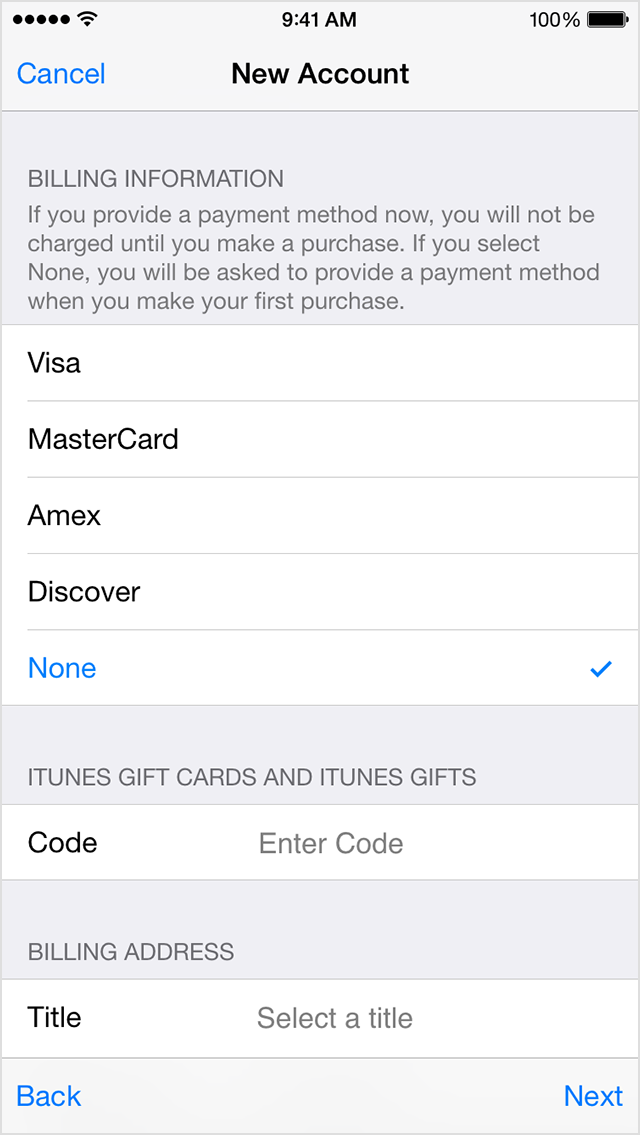
  5. Follow the onscreen instructions. When you're asked for payment information, choose None. See what to do if None isn't showing or you can't select it.
  6. After you enter all of the information required, you'll be asked to verify your Apple ID by email. You must verify your Apple ID before you can begin using it. Didn't receive the email?
If you use Family Sharing, and you’re the family organizer, you can’t set your payment information to None. You'll need to use a credit card or debit card.

On a Mac or PC

  1. Open iTunes, then go to the iTunes Store by clicking the iTunes Store button at the top of the window.
  2. Scroll down and find the country flag in the lower-right corner of the window. If it's not the flag of the country where you live, click it and choose your country or region.
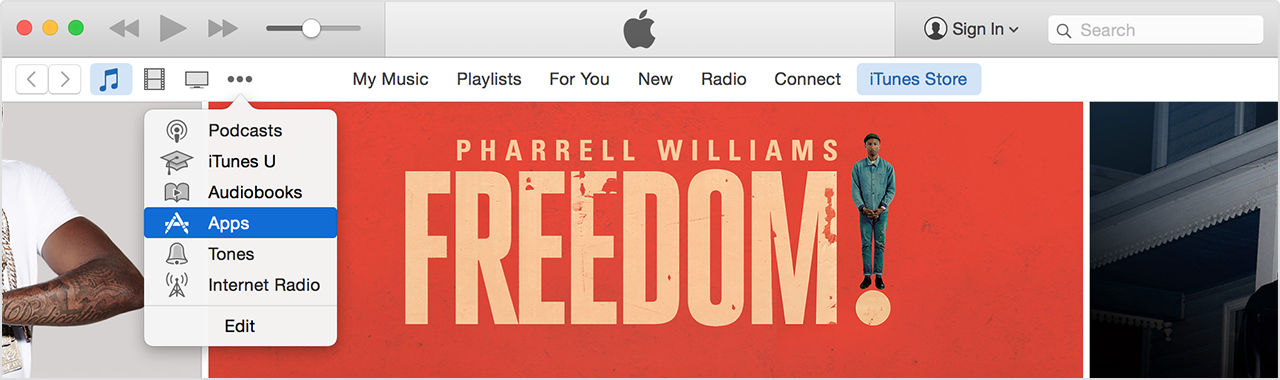
  3. Go to the App Store, Music, TV Shows, or Books section of the store by clicking on one of the icons in the upper-left corner.
  4. Download a free app, song, video, or book. To find free items, look in the right column of the window and click any link that includes the word "Free," such as "Free on iTunes" or "Top Free." When you find a free item, click Get beneath its icon.
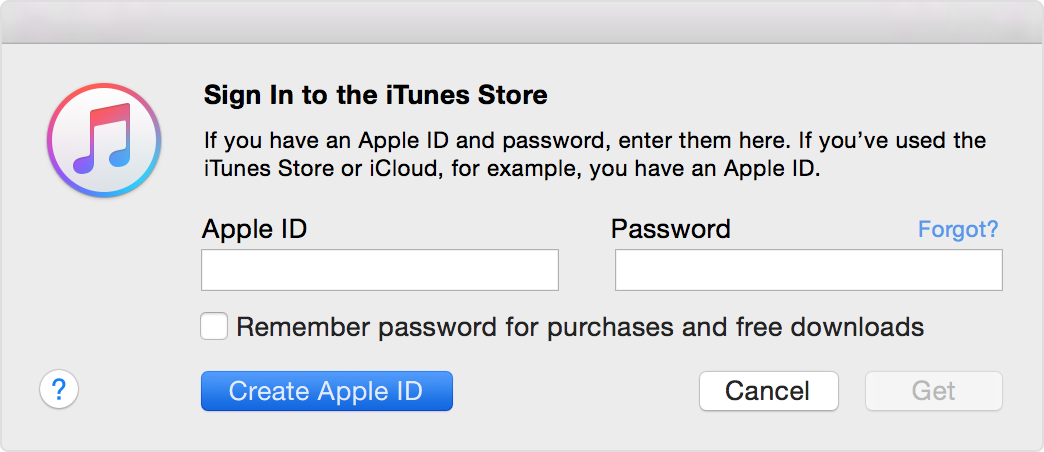
  5. When you're asked to sign in with an Apple ID, click Create Apple ID.
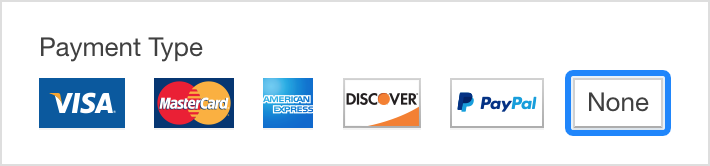
  6. Follow the onscreen instructions. When you're asked for payment information, choose None as the payment type. See what to do if None isn't showing or you can't select it.
  7. After you enter all of the information required, you'll be asked to verify your Apple ID by email. You must verify your Apple ID before you can begin using it. Didn't receive the email?


**Collected from support.apple.com

Thursday, October 29, 2015

Dell Tech Driect Exam 2015 Dell™ Training for Dell™ Chromebook 11

1.
The Dell Chromebook 11 does not consist of ePSA, Dell BIOS or F12 menu. All diagnostics are dependent on the Google Chrome OS. CROSH Test is used to run diagnostics. What is the command used to for a more complete list of commands for debugging purposes?


help

Ctrl + M

help_advanced

Ctrl + M + T
2.You suspect a possible memory failure. What memory test should be run to verify the failure?
 Press Ctrl + Alt + T. Type memory_test 
Press Ctrl + Alt + D. Type memory_test 
Press Ctrl + M. Type memory_test 
Run the ePSA Diagnostics Test
3.What is the purpose of RMA Shim to be carried out in Dell Chromebook 11 after any electrical parts being replaced?
  To ensure the parts replacement passes the diagnostics, enumerates the Hardware ID and re-installs the OS 
To ensure the LCD Display brightness and contrast is at optimal level 
To ensure the processor ID is matched with the memory ID
 To register new License Key for Chrome OS
4.Where can you obtain the RMA Shim utilities files to run the process?
  When creatinge a dispatch for Chromebook in Tech Direct webpage
 Dell Support website
 Request from Dell Technical Support agent
 Tech Direct main login page
5.What parts are NOT required to run RMA Shim process after replacing the parts in Dell Chromebook 11? (Select all that apply.)
  SSD
 SD Memory Card
 WLAN Card
 Battery
 System Board
 Bottom Cover
6.It is recommended that the Fan module is removed before sliding and remove the WLAN card from its slot. The reason is due to space constraints between the WLAN card and Fan module. True or False?
  True
 False
7.If you found the Dell Chromebook Keyboard is faulty and need to be replaced, what is the part you will request Dell Technical Support agent to dispatch?
  Palmrest Assembly
 System Board only
 LCD Assembly
 Keyboard only
8.Dell Chromebook 11 LCD Display is blank. You have tried to plug in AC Adapter and restart the Chromebook by holding down until the device turns off then turning it back on again. What is the next step of testing before requesting for hardware replacement?
  Run ePSA test
 Reset or Recover the Chromebook 
Press ESC key two times
 Press F12 during system starts up
9.What is the command to run a battery test by using CROSH on the web browser?
  diag_battery 
     battery_test
  battery_diagnostics 
  test_battery
10.What will be the issue when the Status LED light located at the front right of the Chromebook is blinking amber?
  AC Powered, charge level less that 97% charging
 AC Powered, charge level higher that 97%
 Battery powered, charge level less that 10%
 Battery Error

Monday, October 19, 2015

DRDB0112WBTS - DR4100 Introduction and Sales Overview v2 0813

1. Which of the following is not considered a key function of the DR4100?
inline deduplication
replication
disruptive deployment
protocol support
2. What percentage of all data is stored on PC desktops or laptop computers, according to a recent study by Small Business Computing?
54%
60%
65%
80%
3. As a technology, ___________ is about reducing and or eliminating redundant pieces of data
rehydration
deduplication
replication
backup
4. Which of the following is not a factor in the DR4100 Total Cost of Ownership (TCO)?
it scales up in physical storage capacity
it reduces the backup storage costs
it has all-inclusive licensing
it is a digital storage device
5. Which of the following best completes the statement? The DR4100 is _______________ dedicated to data deduplication for backups.
a software solution
a hardware appliance
a combination of a hardware and software solution
a virtual software solution
6. Which role is not considered a potential target persona for the DR4100?
IT Manager
Backup Administrator
Database Administrator
Financial Analyst
7. Which is not a benefit of the DR4100 for backup and recovery?
handles large data growth
provides data protection
provides a network firewall
keeps backup and storage costs low
8. With disk based expansion, the DR4100 can have up to ______ GB of raw usable capacity
2.7 TB
27 TB
8.1 TB
81 TB
9. Which of the following is not a key feature of the DR4100?
backup
deduplication
compression
security
10. What percentage of business data loss is due to human-induced disasters, as reported by the Association of Information Technology Professionals?
75%
99%
26%
80%

Sunday, September 27, 2015

Add Your Gmail Account to Outlook 2010 Using IMAP

Enable IMAP in Gmail
First log into your Gmail account and open the Settings panel. Click on the Forwarding and POP/IMAP tab and verify IMAP is enabled and save changes.
1imap
Next open Outlook 2010, click on the File tab to access the Backstage view. Click on Account Settings and Add and remove accounts or change existing connection settings.
2imap
In the Account Settings window click on the New button.
3imap
Enter in your name, email address, and password twice then click Next.
4imap
Outlook will configure the email server settings, the amount of time it takes will vary.
5imap
Provided everything goes correctly, the configuration will be successful and you can begin using your account.
6imap
16imap
Manually Configure IMAP Settings
If the above instructions don’t work, then we’ll need to manually configure the settings. Again, go into Auto Account Setup and select Manually configure server settings or additional server types and click Next.
7imap
Select Internet E-mail – Connect to POP or IMAP server to send and receive e-mail messages.
8imap
Now we need to manually enter in our settings similar to the following. Under the Server Information section verify the following.
  • Account Type: IMAP
  • Incoming mail server: imap.gmail.com
  • Outgoing mail server (SMTP): smtp.gmail.com
9imap
Note: If you have a Google Apps account make sure to put the full email address (user@yourdomain.com) in the Your Name and User Name fields.
Note: If you live outside of the US you might need to use imap.googlemail.com and smtp.googlemail.com
Next, we need to click on the More Settings button…
10imap
In the Internet E-mail Settings screen that pops up, click on the Outgoing Server tab, and check the box next to My outgoing server (SMTP) requires authentication. Also select the radio button next to Use same settings as my incoming mail server.
11imap
In the same window click on the Advanced tab and verify the following.
  • Incoming server: 993
  • Incoming server encrypted connection: SSL
  • Outgoing server encrypted connection TLS
  • Outgoing server: 587
Note: You will need to change the Outgoing server encrypted connection first, otherwise it will default back to port 25. Also, if TLS doesn’t work, we were able to successfully use Auto. Click OK when finished.
12imap
Now we want to test the settings, before continuing on…it’s just easier that way incase something was entered incorrectly. To make sure the settings are tested, check the box Test Account Settings by clicking the Next button.
13imap
If you’ve entered everything in correctly, both tasks will be completed successfully and you can close out of the window. and begin using your account via Outlook 2010.
14imap
You’ll get a final congratulations message you can close out of…
15imap
And begin using your account via Outlook 2010.
16imap

Add Your Gmail Account to Outlook 2010 using POP

Log into your Gmail account an go to your settings page. Under the Forwarding and POP/IMAP tab make sure POP is enabled.  You can choose to enable POP access for all new mail that arrives from now on, or for all mail in your Gmail account.  On the second option, we suggest you chose keep Gmail’s copy in the Inbox so you can still access your emails on the Gmail server.

sshot-2010-05-16-[02-10-50]
Add Your Account to Outlook 2010
If you haven’t run Outlook 2010 yet, click Next to start setup and add your email account.
SNAGHTML29d6c7f
Select Yes to add an email account to Outlook.  Now you’re ready to start entering your settings to access your email.
SNAGHTML29f5fc3
Or, if you’ve already been using Outlook and want to add a new POP account, click File and then select Add Account under Account Information.
sshot-2010-05-16-[03-20-13]
Outlook 2010 can often automatically find and configure your account with just your email address and password, so enter these and click Next to let Outlook try to set it up automatically.
sshot-2010-05-16-[02-20-38]
Outlook will now scan for the settings for your email account.
sshot-2010-05-16-[02-23-24]
If Outlook was able to find settings and configure your account automatically, you’ll see this success screen.  Depending on your setup, Gmail is automatically setup, but sometimes it fails to find the settings.  If this is the case, we’ll go back and manually configure it.
sshot-2010-05-16-[02-30-53]
Manually Configure Outlook for Gmail
Back at the account setup screen, select Manually configure server settings or additional server types and click Next.
sshot-2010-05-16-[02-35-03]
Select Internet E-mail and then click Next.
sshot-2010-05-16-[02-38-16]
Enter your username, email address, and log in information. Under Server information enter in the following:
  • Account Type: POP3
  • Incoming mail server: pop.gmail.com
  • Outgoing mail server: smtp.gmail.com
Make sure to check Remember password so you don’t have to enter it every time.
sshot-2010-05-16-[02-46-55]
After that data is entered in, click on the More Settings button.
sshot-2010-05-16-[02-48-24]
Select the Outgoing Server tab, and check My outgoing server (SMTP) requires authentication.  Verify Use same settings as my incoming mail server is marked as well.
sshot-2010-05-16-[02-49-34]
Next select the Advanced tab and enter the following information:
  • Incoming Server (POP3): 995
  • Outgoing server (SMTP): 587
  • Check This server requires an encrypted connection (SSL)
  • Set Use the following type of encrypted connection to TLS
You also might want to uncheck the box to Remove messages from the server after a number of days.  This way your messages will still be accessible from Gmail online.
sshot-2010-05-16-[02-54-22]
Click OK to close the window, and then click Next to finish setting up the account.  Outlook will test your account settings to make sure everything will work; click Close when this is finished.
sshot-2010-05-16-[02-56-16]
Provided everything was entered in correctly, you’ll be greeted with a successful setup message…click Finish.
sshot-2010-05-16-[02-57-09] 
Gmail will be all ready to sync with Outlook 2010.  Enjoy your Gmail account in Outlook, complete with fast indexed searching, conversation view, and more!
sshot-2010-05-16-[03-02-35]

CDPO0814WBTS - Client Devices Portfolio Overview


1. Your customer is implementing a BYOD strategy and is compiling a list of devices that their employees can choose from. Why would XPS be a great fit for your customer?
XPS systems deliver the design and experience employees will enjoy at home and at work, with IT-friendly features that will make them easy for IT to manage.
XPS systems are first to market with the latest technologies and custom ecosystems that the employees will enjoy wherever they work.
XPS systems are crafted with premium components like machined aluminum, carbon fiber, and Corning® Gorilla® Glass NBT, so they will hold up wherever the employees will need to use them.
XPS systems deliver uncompromised experiences with features like eye-popping displays, innovative connectivity options, and solid state hard drives.
2. Which of Dells client devices meet Dell's most secure, most manageable, with outstanding reliability claim? (Choose four)
Latitude
Optiplex
Precision
Rugged
XPS
Vostro
3. How does Dell deliver manageable commercial PCs?
Dell builds business-class systems with management capabilities that allow for easier deployment, configuration, monitoring and updating.
Dell provides comprehensive solutions that protect data wherever it goes without sacrificing IT control or end-user productivity.
Dell builds systems in a variety of form factors that are designed to fit into whichever environment your customers need them to.
Dell has strict component qualifications and reliability testing that ensures high quality and a consistent user experience.
4. Which of the following customers are potential Rugged customers? (Choose four)
Manufacturing and industrial workers
Military personnel
Public service workers (police officers)
Scientists and researchers
Call center representatives
Office task workers
5. Your customer is looking for highly portable devices that will integrate into their environment. Which is the best way to position Dell Venue tablets to this customer?
Dell Venue tablets are the perfect solution for you because they offer the adaptability and portability your employees want while maintaining enterprise-level management and security.
Our Venue tablets would be a great fit for you because your employees can use them as primary devices to catch up on the latest news and social media updates from their couch.
Your employees will love our Dell Venue tablets because they are available in a variety of portable form factors and come with a cutting-edge look that they will be proud to carry.
The Dell Venue tablet family is the best option for you because you can choose from Windows and Android operating systems to find the best fit for your employees.
6. Why is it important to sell peripherals like printers and displays? (Choose three)
Peripherals create a comprehensive ecosystem to enhance your customers' experience with our client devices.
Your customers are likely going to purchase these products anyway.
Your customers cannot purchase Dell-branded peripherals after the point of sale.
Dell's client portfolio is only compatible with Dell-branded peripherals.
Peripherals add incremental revenue and margin onto each client device sale.
7. How does Dell deliver secure commercial PCs?
Dell endpoint security solutions protect data wherever it goes without sacrificing IT control or end-user productivity.
Dell builds business-class systems that allow for easier deployment, configuration, monitoring, and updating.
Dell designs systems to continuously improve performance, quality, and user experience.
With Dell solutions, IT can remotely inventory systems to determine which require updates and proactively monitor systems to prevent failures.
8. Choose the best response to a customer who says, We don't have enough manpower to be constantly replacing our employee's computers.
Dell has done some exclusive work with Intel to create unique vPro extensions that will help you manage your fleet of systems, whether they're powered on or off.
Dell systems go through a variety of reliability tests, including military and cycle tests, to ensure that they will thrive under your conditions.
Dell's endpoint security solution offers one-touch, preset templates that simplify the process of meeting security regulations, but won't interfere with existing IT processes.
Dell's manageability solutions are designed to speed up your deployment. Our automation tools import your drivers in 17 fewer steps than our competitors, which will save you about an hour per computer.
9. Which line of client devices would be the best fit for an architectural firm looking for systems to create 3D models?
Precision
Optiplex
Latitude
XPS
10. What are the most critical things you should ask your customers to effectively position our client devices? (Choose three)
What will your end-users be doing with these systems?
What kinds of applications will your employees be using?
Where will your employees be using these PCs?
Which Dell product lines are you most interested in?
How many devices are you looking to purchase?